Medical devices · Training guide
Device Submission (510(k), De Novo, PMA)
Plan an FDA 510(k), De Novo request or PMA: the substantial equivalence decision against the predicate, the content the pathway needs, the performance testing and the MDUFA review goal.
Open the tool at https://app.cmcfy.com/app/device-submission.html. This guide is also online at https://cmcfy.com/guides/device-submission.html
1. What this module does
You choose the pathway and class, describe the device and its indications for use, compare it with the predicate characteristic by characteristic, and list the performance tests and the status of each part of the submission.
For a 510(k) the tool follows FDA's substantial equivalence decision: same intended use, then whether differences raise different questions of safety and effectiveness, then whether data supports each difference. It lists the content for the pathway (biocompatibility, sterility, software, cybersecurity and EMC when they apply) and gives the MDUFA goal in FDA days.
What you get
- A Word or PDF file: 510(k) summary with the substantial equivalence discussion, or the De Novo or PMA summary.
2. Before you start
Have these ready. You can still start with the example data and replace it piece by piece.
- The predicate 510(k) number and its labeling.
- Performance test reports.
- The eSTAR content list.
3. Step by step with the example
Open the tool at app.cmcfy.com/app/device-submission.html. The example is loaded when the page opens, so every panel already has realistic data. Follow the steps to see how it works, then replace the example with your own data.
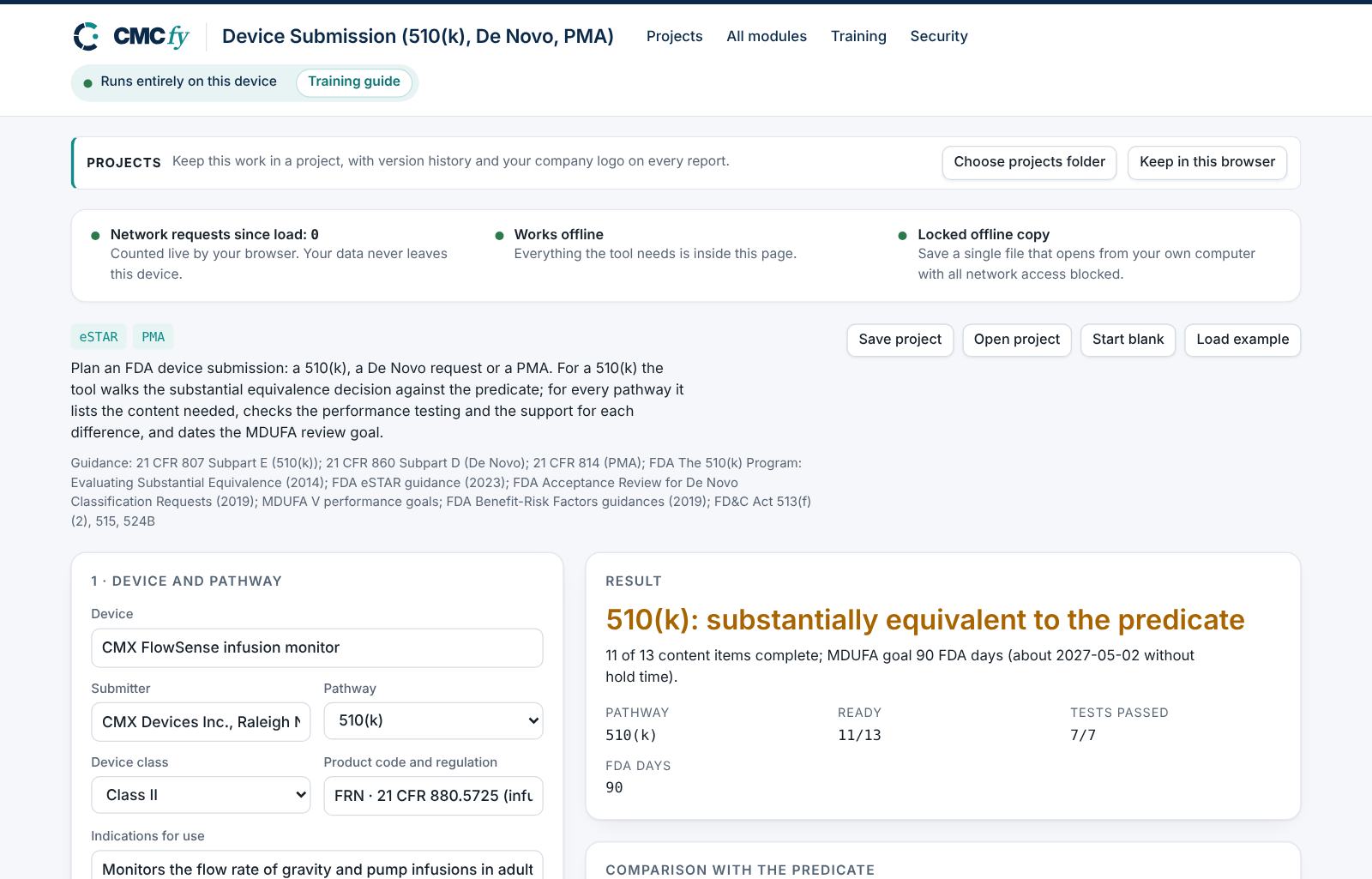
Describe the device and pathway
Choose 510(k), De Novo or PMA and the class, and tick what applies: sterile, patient contact, software, cyber device, electrical.
Compare with the predicate
One row per characteristic. Mark each difference and give the data that addresses it.
Read the result
The headline gives the decision: "510(k): substantially equivalent to the predicate".
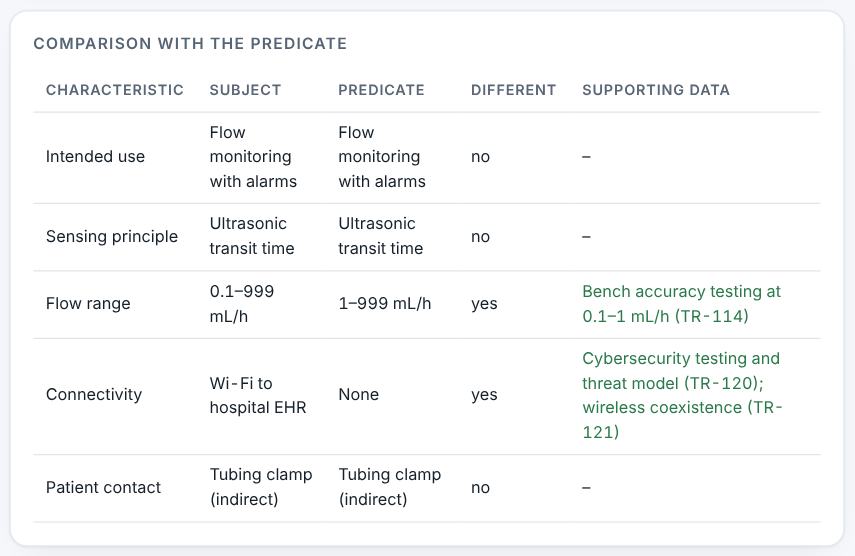
Comparison with the predicate and the content list. Resolve alerts and download
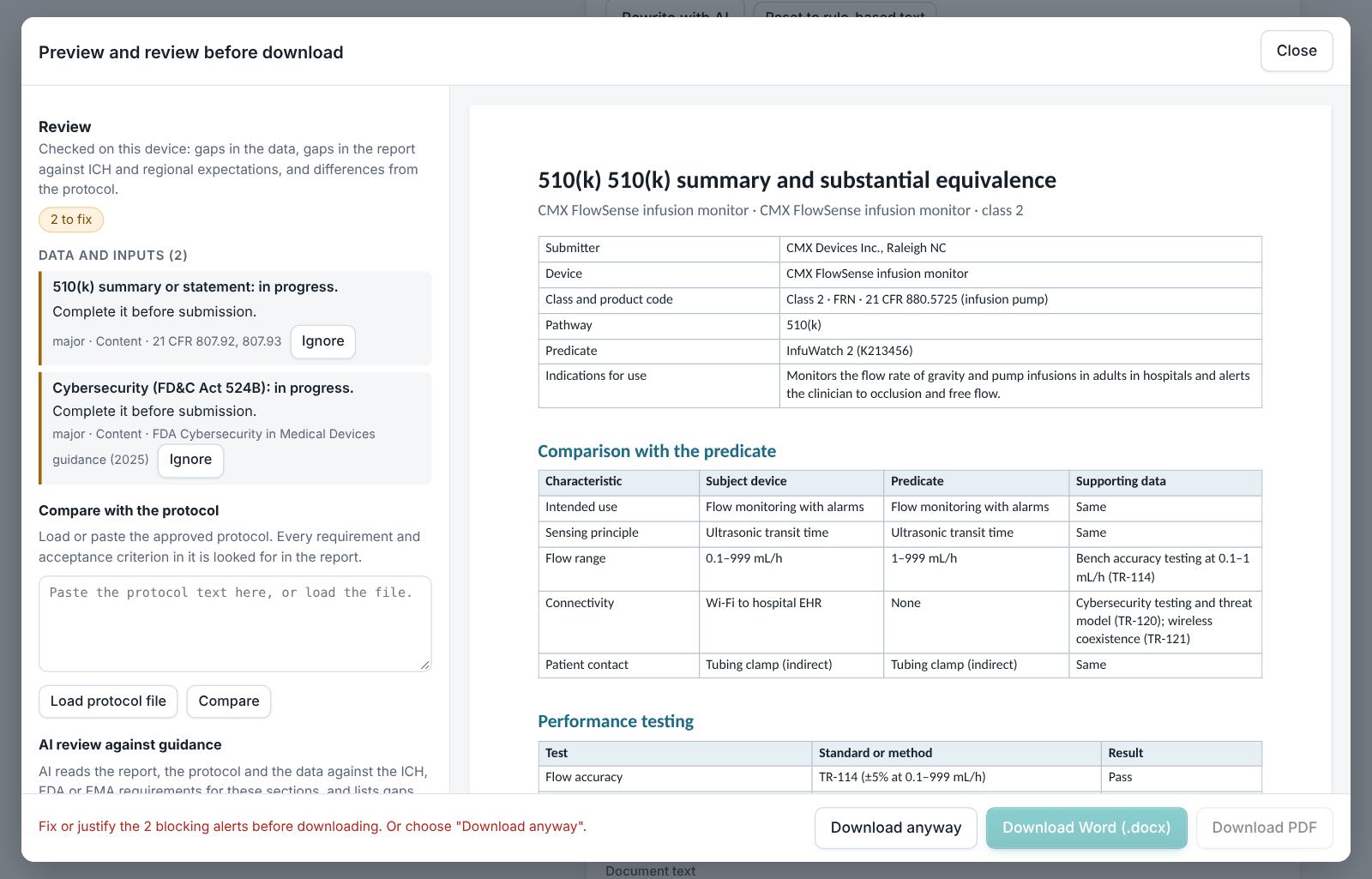
A new intended use, differences that raise different questions, a failed test, a class III device in a 510(k) and missing core content are critical. Differences without data and open items are flagged. Then preview and download.
4. Field reference
Every input in the tool, panel by panel. Tables accept rows pasted straight from Excel, comma-separated text, or a loaded file; check the columns after loading a file. Fields marked “when it applies” appear only for the choices that need them.
1 · Device and pathway
| Field | What to enter |
|---|---|
| Device | Type it in. |
| Submitter | Type it in. |
| Pathway | Choose one: 510(k); De Novo; PMA. |
| Device class | Choose one: Class I; Class II; Class III. |
| Product code and regulation | Type it in. |
| Indications for use | Type it in. |
| Sterile or has a shelf life | Tick the box if it applies. |
| Patient-contacting materials | Tick the box if it applies. |
| Contains software | Tick the box if it applies. |
| Cyber device (connects to the internet or a network) | Tick the box if it applies. |
| Electrically powered | Tick the box if it applies. |
| Clinical data included when it applies | Tick the box if it applies. |
| Advisory panel expected when it applies | Tick the box if it applies. |
| Planned submission date | Type it in. |
2 · Predicate and comparison
For a 510(k): one row per characteristic. Different: yes when it differs from the predicate; give the data that addresses each difference.
| Field | What to enter |
|---|---|
| Predicate device (510(k) number) when it applies | Type it in. |
| Same intended use as the predicate when it applies | Tick the box if it applies. |
| Differences raise different questions of safety or effectiveness when it applies | Tick the box if it applies. |
| Comparison | Write "yes" in Different only when the characteristic differs from the predicate. A table. Columns: Characteristic | Subject device | Predicate | Different (yes/no) | Data addressing the difference. Paste rows from Excel, type comma-separated rows, or press Load file (Excel, CSV, Word, PDF or a scan). |
3 · Testing and content
| Field | What to enter |
|---|---|
| Performance testing | A table. Columns: Test | Standard or method | Result (pass/fail). Paste rows from Excel, type comma-separated rows, or press Load file (Excel, CSV, Word, PDF or a scan). |
| Submission content | A table. Columns: Item | Status. Paste rows from Excel, type comma-separated rows, or press Load file (Excel, CSV, Word, PDF or a scan). |
5. Checks and alerts
Calculations and pass/fail outcomes always come from fixed rules, never from AI. The tool checks:
- Substantial equivalence decision.
- Performance testing and support for each difference.
- Content by pathway and MDUFA goal.
How to resolve alerts
- Critical alerts block the download and must be fixed in the data. A failing result can instead be linked to an investigation: type the investigation reference and outcome and press Record.
- Major alerts block the download until you fix them or type a justification and press Accept justification.
- Minor alerts do not block anything. They are listed in the documents so the reviewer sees them.
- Some alerts have an Apply fix button that makes the change for you. Reopen undoes a justification.
Narratives
This module writes: Substantial equivalence or summary. Each narrative is written by fixed rules from your data. You can edit it in the box. Rewrite with AI (where your plan includes AI) rewrites it in regulatory style; every number in the text is checked against your data, and a number that does not match is flagged under the box and blocks the download until you correct it. Reset to rule-based text brings back the original.
6. Preview, gap review and download
- Press Preview next to a section, or Preview and download all. The document opens in a preview window, exactly as the Word file will read.
- The left side lists the review, run on your device: gaps in the data (missing values, open alerts), gaps in the report (missing content the guidance expects, placeholders such as [site] or TBD left in the text) and, if you load the approved protocol under Compare with the protocol, differences from the protocol (requirements, criteria, batches or time points it plans that the report does not show).
- Click a finding to jump to the place in the preview. Fix it in the tool, then preview again.
- Optional AI review: a second read for contradictions, claims without data and vague wording. The report text is sent to Claude only when you press it, and only where your plan includes AI. Check every AI finding; AI can be wrong.
- Press Download Word (.docx) or Download PDF. With several documents open, All as Word (.zip) and All as PDF (.zip) download the set. The download buttons stay disabled while a blocking alert is open; the preview still works.
Documents this module produces
| Section | Document |
|---|---|
| 510(k) / De Novo / PMA | Submission summary |
Use Save project to keep your work as a file on your computer, and Open project to continue later. Start blank clears every field; Load example brings the example back. Nothing is stored on CMCfy servers.
7. US and EU submissions
US only: FDA 21 CFR 807, 814 and 860. For the EU, the technical documentation follows EU MDR Annexes II and III.
8. Working with other modules
- Trace design controls in the Design History File and write the Risk Management Report.
9. Common pitfalls
- A predicate with a different intended use.
- A connected device without the 524B cybersecurity information.
10. Practice exercises
Each exercise starts from the example (press Load example to reset). We run these on every update of this guide, so the result you see should match.
Change the intended use
Untick "Same intended use as the predicate".
Expected resultThe headline shows a critical issue: not substantially equivalent.