GMP quality reports · Training guide
Cleaning Validation Report
Write the cleaning validation report with acceptance limits calculated from the health-based exposure limit (PDE) of the product cleaned, and every swab, rinse, visual, TOC, bioburden and endotoxin result checked against its limit with recovery applied.
Open the tool at https://app.cmcfy.com/app/cleaning-validation.html. This guide is also online at https://cmcfy.com/guides/cleaning-validation.html
1. What this module does
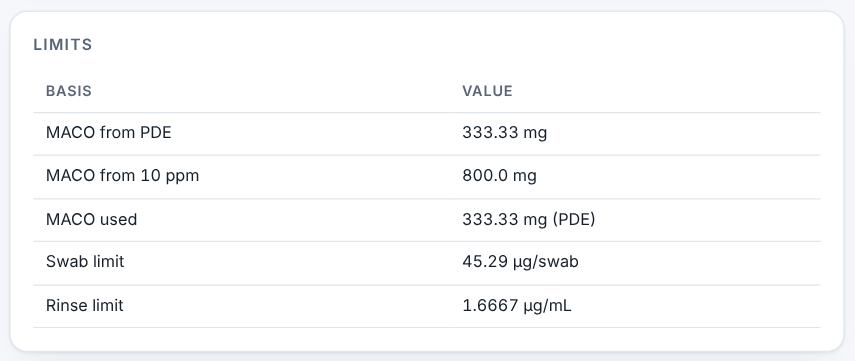
The tool calculates the maximum allowable carryover (MACO) from the PDE of the product cleaned, the smallest batch of the next product and its largest daily dose, and optionally the 10 ppm criterion, using the lower value. It converts the MACO into a swab limit per swab area and a final rinse limit.
Each result is corrected for recovery (unless you say it already is) and compared with its limit. The report gives the limits, the results by run and location, hold times and the conclusion.
What you get
- A Word or PDF report: Cleaning validation report, with the limit calculation, results table and sign-off lines.
2. Before you start
Have these ready. You can still start with the example data and replace it piece by piece.
- The approved cleaning validation protocol and the cleaning procedure.
- The PDE of the product cleaned, the smallest next batch size and largest next daily dose, the shared surface area, swab area and rinse volume.
- Swab and rinse recovery, the method LOQ, and limits for TOC, bioburden or endotoxin if used.
- The results of each run, with visual inspection, and the validated hold times and campaign length.
3. Step by step with the example
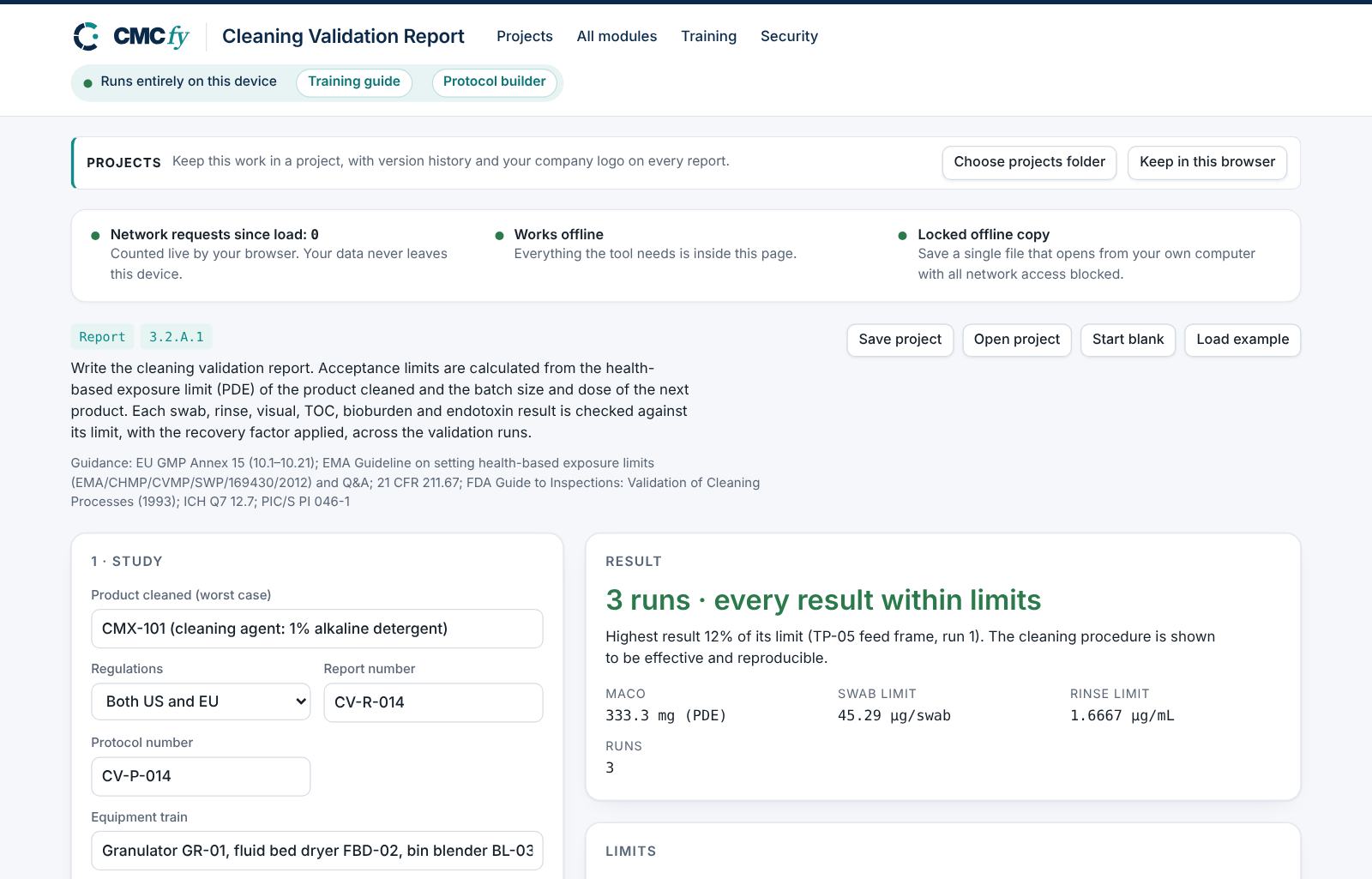
Open the tool at app.cmcfy.com/app/cleaning-validation.html. The example is loaded when the page opens, so every panel already has realistic data. Follow the steps to see how it works, then replace the example with your own data.
Describe the study
Enter the product cleaned, the regulations, the report and protocol numbers, the equipment train, the cleaning procedure and the worst-case rationale.
Enter the limit inputs
Give the PDE, next batch size and dose, surface area, swab area and rinse volume, the recoveries and the LOQ. Tick Also apply the 10 ppm criterion to use the lower of the two MACO values.
Read the limits and results
The headline shows the outcome ("3 runs · every result within limits") and the facts give the MACO, swab and rinse limits. The results table shows each result corrected for recovery and as a percentage of its limit.
Limits and results. Resolve alerts and download
A result above its limit or a failed visual inspection is critical and must be recorded with its investigation. Missing PDE, fewer than three runs, low recovery, an LOQ too close to the limit and missing hold times are flagged. Then preview and download.
4. Field reference
Every input in the tool, panel by panel. Tables accept rows pasted straight from Excel, comma-separated text, or a loaded file; check the columns after loading a file. Fields marked “when it applies” appear only for the choices that need them.
1 · Study
| Field | What to enter |
|---|---|
| Product cleaned (worst case) | Type it in. |
| Regulations | Choose one: US: 21 CFR 211.67 and FDA guidance; EU: EU GMP Annex 15 and EMA HBEL guideline; Both US and EU. |
| Report number | Type it in. |
| Protocol number | Type it in. |
| Equipment train | Type it in. |
| Cleaning procedure | Type it in. |
| Worst-case rationale | Type or paste text. |
2 · Limit calculation
| Field | What to enter |
|---|---|
| PDE of the product cleaned (mg/day) | Use the PDE or ADE from the toxicology assessment of the product cleaned. Type a number. |
| Minimum batch size of the next product (kg) | Type a number. |
| Maximum daily dose of the next product (mg/day) | Type a number. |
| Shared product-contact surface area (cm²) | Type a number. |
| Swab area (cm²) | Type a number. |
| Final rinse volume (L) | Type a number. |
| Also apply the 10 ppm criterion | Tick the box if it applies. |
| Analytical method LOQ (µg/swab) | Type a number. |
| Swab recovery (%) | Type a number. |
| Rinse recovery (%) | Type a number. |
| Results already corrected for recovery | Tick only if the results you enter are already divided by the recovery. Tick the box if it applies. |
| TOC limit (ppb, optional) | Type a number. |
| Bioburden limit (CFU per swab) | Type a number. |
| Endotoxin limit (EU/mL, optional) | Type a number. |
3 · Results
One row per sample. Sample type: swab, rinse, visual, TOC, bioburden or endotoxin. Visual results are pass or fail.
| Field | What to enter |
|---|---|
| Results | Sample type is swab, rinse, visual, TOC, bioburden or endotoxin. Write "<LOQ" for results below the limit of quantitation. A table. Columns: Run | Location | Sample type | Result | Unit. Paste rows from Excel, type comma-separated rows, or press Load file (Excel, CSV, Word, PDF or a scan). |
| Dirty hold time validated (h) | Type a number. |
| Clean hold time validated (h) | Type a number. |
| Campaign length covered | Type it in. |
| Deviations and their impact | Type or paste text. |
5. Checks and alerts
Calculations and pass/fail outcomes always come from fixed rules, never from AI. The tool checks:
- MACO from the PDE (and 10 ppm if chosen), swab limit per swab area and final rinse limit.
- Swab and rinse results corrected for recovery and compared with the limit; above the limit is critical; above 80% of the limit noted as little margin.
- Visual inspection in every run; three consecutive runs; worst-case rationale; bioburden addressed.
- Swab recovery below 50% (major) or 70% (minor); method LOQ above half the swab limit.
- Dirty and clean hold times and campaign length stated.
How to resolve alerts
- Critical alerts block the download and must be fixed in the data. A failing result can instead be linked to an investigation: type the investigation reference and outcome and press Record.
- Major alerts block the download until you fix them or type a justification and press Accept justification.
- Minor alerts do not block anything. They are listed in the documents so the reviewer sees them.
- Some alerts have an Apply fix button that makes the change for you. Reopen undoes a justification.
Narratives
This module writes: Acceptance limits; Results and conclusion. Each narrative is written by fixed rules from your data. You can edit it in the box. Rewrite with AI (where your plan includes AI) rewrites it in regulatory style; every number in the text is checked against your data, and a number that does not match is flagged under the box and blocks the download until you correct it. Reset to rule-based text brings back the original.
6. Preview, gap review and download
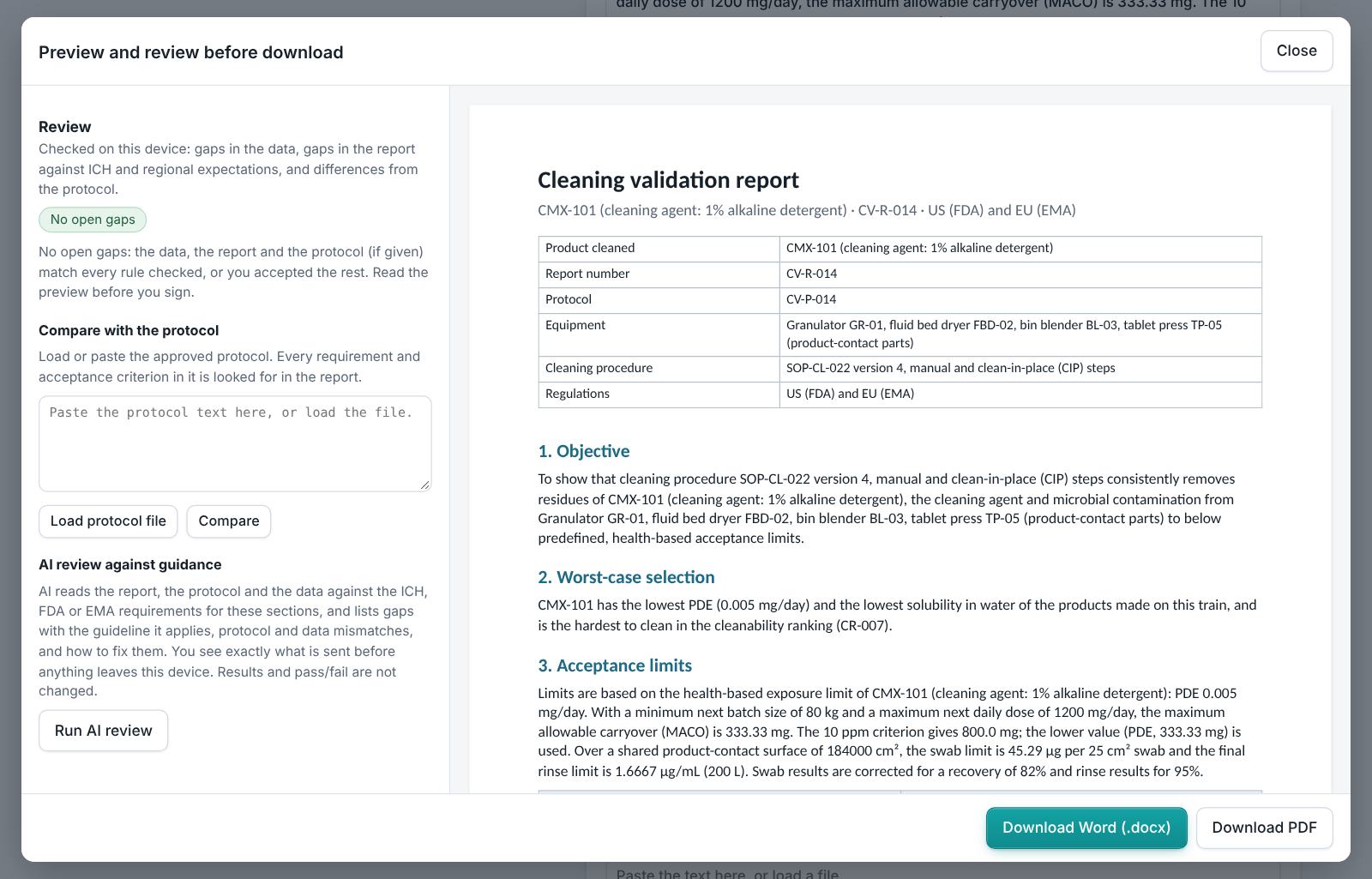
- Press Preview next to a section, or Preview and download all. The document opens in a preview window, exactly as the Word file will read.
- The left side lists the review, run on your device: gaps in the data (missing values, open alerts), gaps in the report (missing content the guidance expects, placeholders such as [site] or TBD left in the text) and, if you load the approved protocol under Compare with the protocol, differences from the protocol (requirements, criteria, batches or time points it plans that the report does not show).
- Click a finding to jump to the place in the preview. Fix it in the tool, then preview again.
- Optional AI review: a second read for contradictions, claims without data and vague wording. The report text is sent to Claude only when you press it, and only where your plan includes AI. Check every AI finding; AI can be wrong.
- Press Download Word (.docx) or Download PDF. With several documents open, All as Word (.zip) and All as PDF (.zip) download the set. The download buttons stay disabled while a blocking alert is open; the preview still works.
Documents this module produces
| Section | Document |
|---|---|
| Report | Cleaning validation report with limits, results and conclusion |
Use Save project to keep your work as a file on your computer, and Open project to continue later. Start blank clears every field; Load example brings the example back. Nothing is stored on CMCfy servers.
7. US and EU submissions
Both regions expect health-based limits. EU mode cites EU GMP Annex 15 (section 10) and the EMA guideline on health-based exposure limits; US mode cites 21 CFR 211.67 and the FDA cleaning validation inspection guide. The 10 ppm criterion is optional and is used only when it gives the lower limit.
8. Working with other modules
- The facility description and the cleaning limits for 3.2.A.1 are written in the Facilities & Equipment Writer module.
- Write the protocol first in the Protocol Builder (Cleaning validation).
- A failure is investigated in the Investigation Studio (OOS, deviation, CAPA); a change to the cleaning procedure goes through Change Control.
9. Common pitfalls
- Using the batch size of the product cleaned instead of the smallest next batch.
- Entering results already corrected for recovery without ticking the box, so they are corrected twice.
- Forgetting the visual inspection rows.
10. Practice exercises
Each exercise starts from the example (press Load example to reset). We run these on every update of this guide, so the result you see should match.
Lower the PDE
Set PDE of the product cleaned to 0.0001.
Expected resultThe headline shows results above the limit.
Use a poor swab recovery
Set Swab recovery to 45.
Expected resultAn alert says the recovery is below 50%.