Reports behind the sections · Training guide
Investigation Studio (OOS, deviation, CAPA)
Run an out-of-specification, out-of-trend or deviation investigation from the first laboratory check to CAPA and closure, with the rules of the FDA OOS guidance and EU GMP built in.
Open the tool at https://app.cmcfy.com/app/investigation-studio.html. This guide is also online at https://cmcfy.com/guides/investigation-studio.html
1. What this module does
The tool follows the investigation as it happens: the event, the original result, the Phase I laboratory checklist and hypothesis testing, retest and resample, the Phase II manufacturing investigation, root cause, impact on other batches, the CAPA plan, and the disposition.
It decides the outcome by rule, for example that passing retests alone cannot invalidate an original OOS result, and blocks a release that the investigation does not support.
What you get
- An investigation report in Word or PDF with results chart, checklists, root cause, impact, CAPA, disposition and sign-off lines.
2. Before you start
Have these ready. You can still start with the example data and replace it piece by piece.
- Event type, investigation number, date, product, batch and stage, a description and the immediate actions.
- For OOS/OOT: test, method, limits, unit, analyst and the individual results; whether the reportable result is a mean.
- Phase I checklist outcomes and any hypothesis testing; retest plan and results; resample decision.
- Phase II review outcomes, root cause, other batches that could be affected, CAPA actions with owner, due date and effectiveness check.
- Records can be loaded from Word, PDF, Excel, CSV or a scan at each step.
3. Step by step with the example
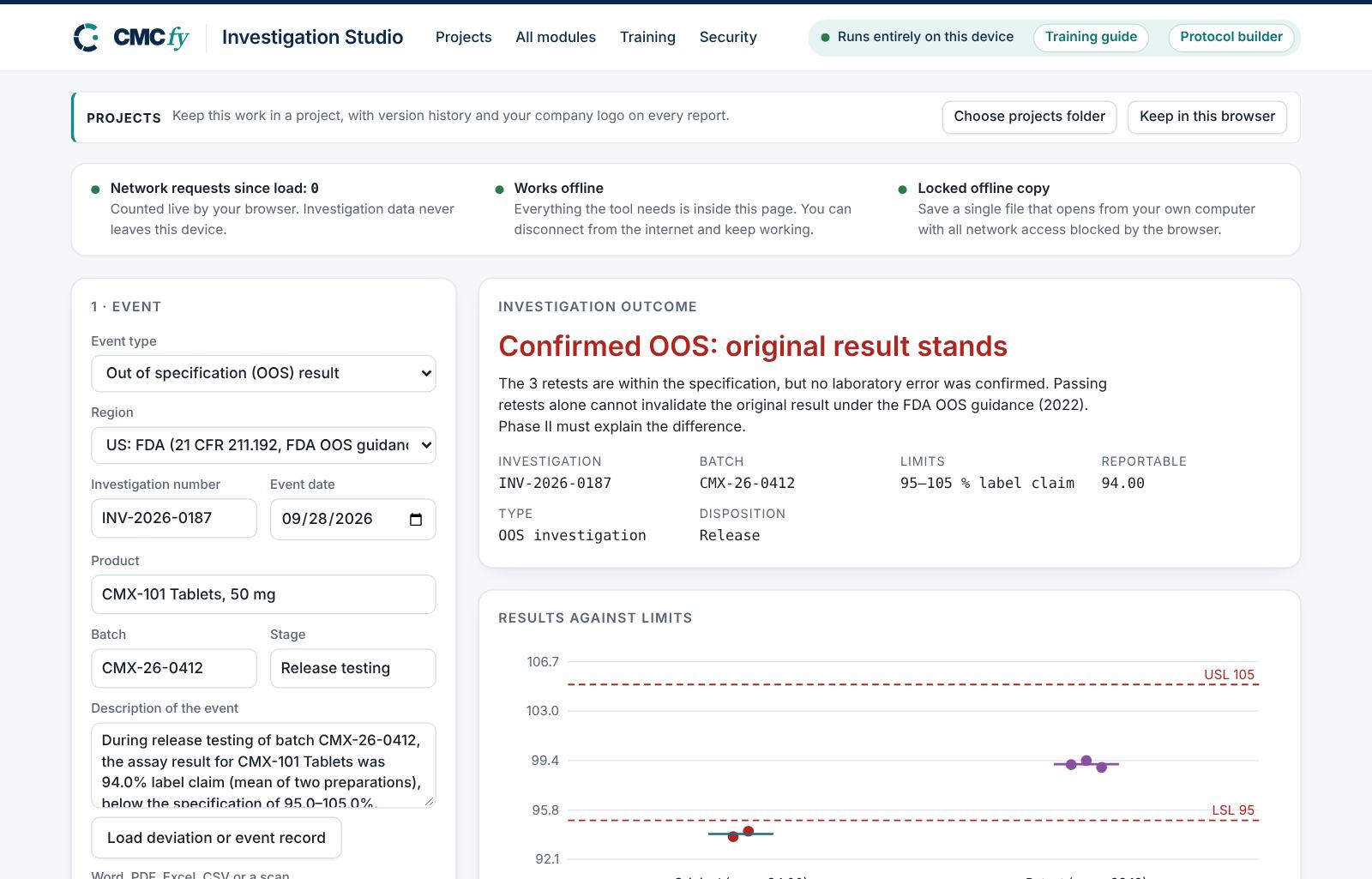
Open the tool at app.cmcfy.com/app/investigation-studio.html. The example investigation (INV-2026-0187, assay of batch CMX-26-0412 at 94.0% against 95–105%) is loaded when the page opens. It contains deliberate gaps so you can see the alerts.
Record the event
Choose the event type (OOS, OOT or deviation) and the region, and enter the investigation details. Load deviation or event record reads the description from a file.
Enter the original result
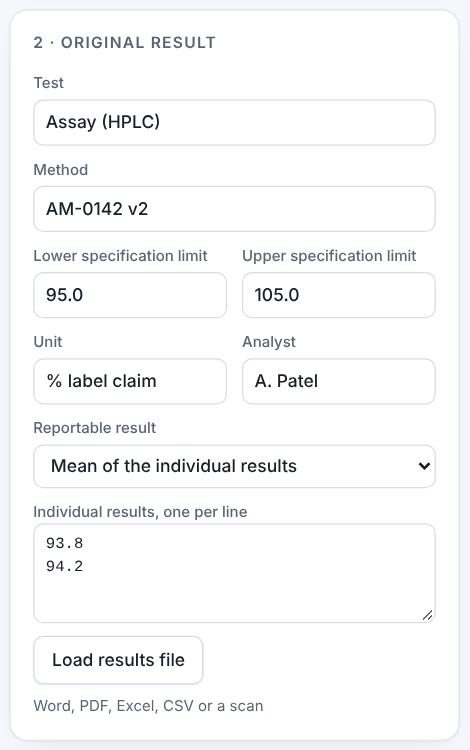
Enter the test, method, limits and the individual results. Choose whether the reportable result is the mean or each individual result. The chart plots the results against the limits.
The original result panel. Work through Phase I
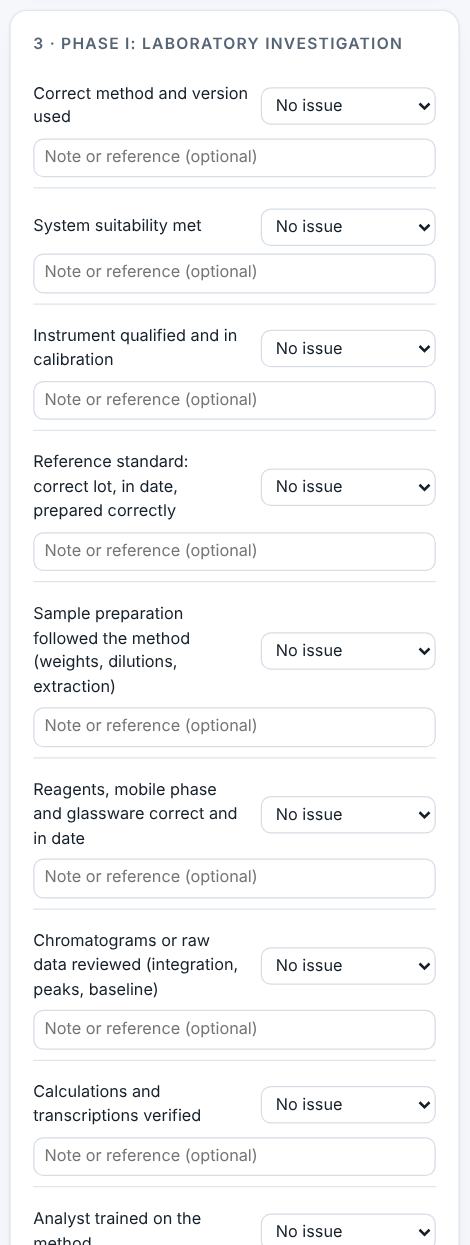
Mark each laboratory check as no issue, issue found or not checked, and record any hypothesis testing. In the example no laboratory error was confirmed.
Phase I laboratory checklist. Retest, Phase II and root cause
Enter the retest plan, analyst and results, then the manufacturing review, the root cause, other batches and the CAPA plan.
Read the outcome
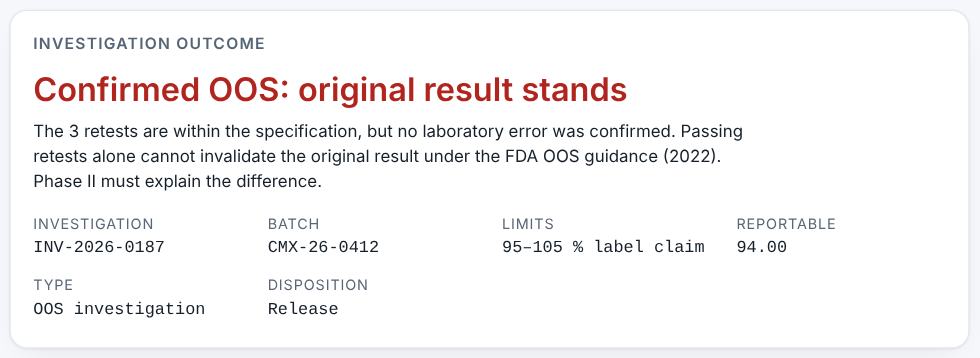
The outcome reads "Confirmed OOS: original result stands". The 3 retests are within the specification, but no laboratory error was confirmed, so passing retests alone cannot invalidate the original result.
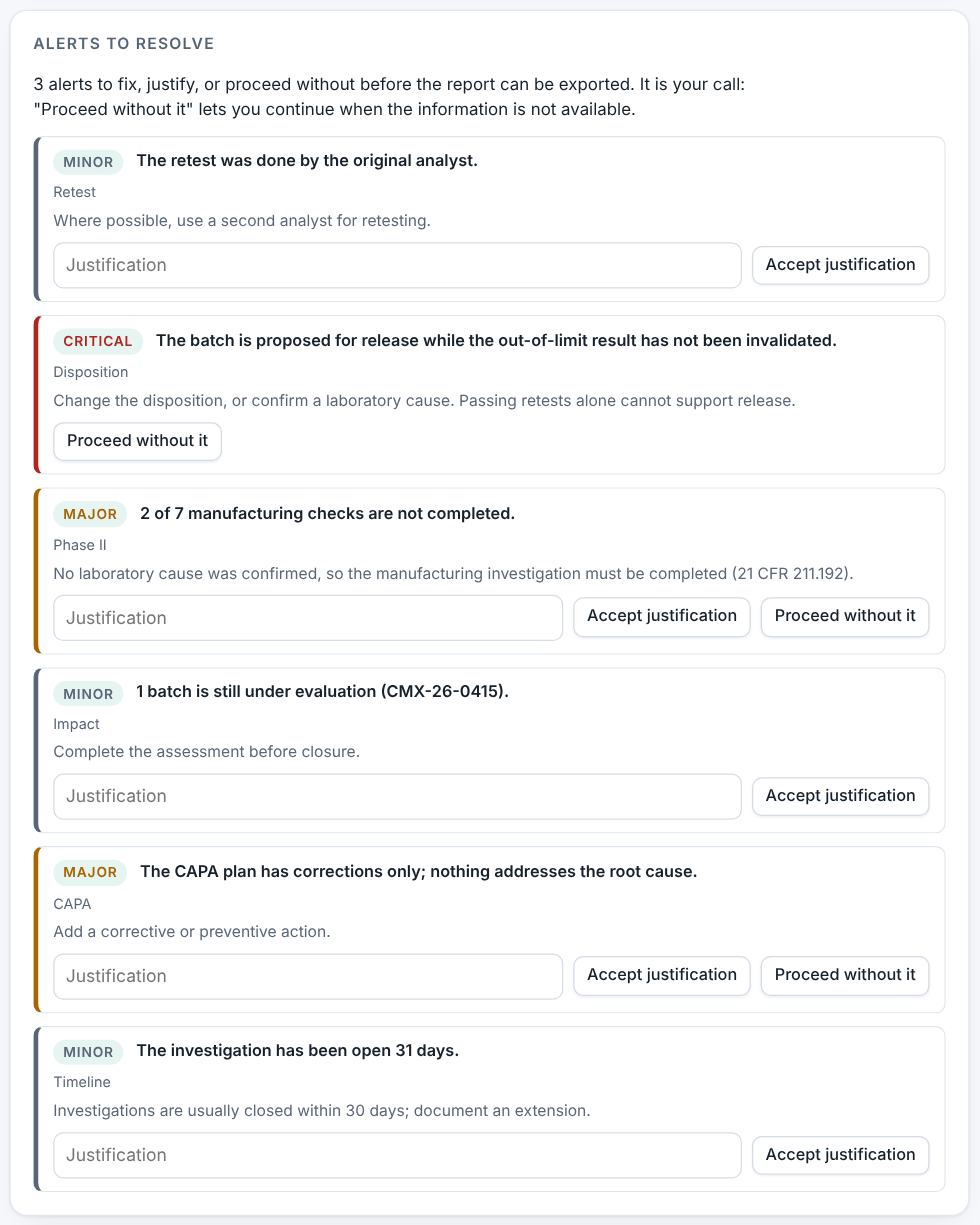
Resolve alerts
The example has a critical alert because the batch is proposed for release while the result has not been invalidated, and major alerts for an incomplete Phase II and a CAPA plan with corrections only. Change the disposition, complete the checks and add a corrective action.
Preview, review and download
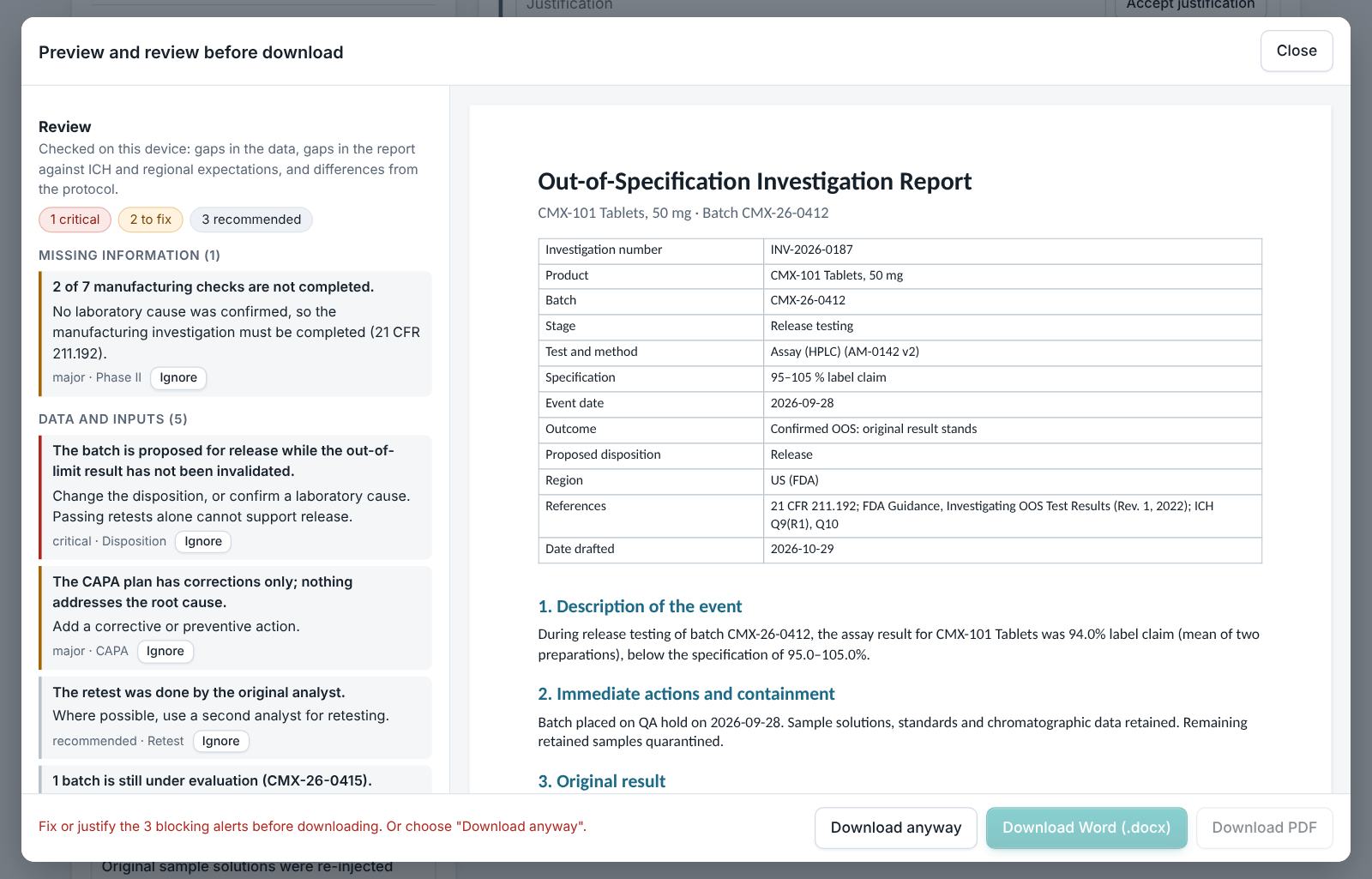
Press Preview and download report, read the review and download Word or PDF once no blocking alert remains.
4. Field reference
Every input in the tool, panel by panel. Tables accept rows pasted straight from Excel, comma-separated text, or a loaded file; check the columns after loading a file. Fields marked “when it applies” appear only for the choices that need them.
1 · Event
| Field | What to enter |
|---|---|
| Event type | OOS, OOT or deviation. OOS and OOT open the result, Phase I and retest panels; a deviation opens classification. |
| Region | US (21 CFR 211.192, FDA OOS guidance), EU (EU GMP Chapters 1, 6 and 8, Annex 16) or both. |
| Investigation number, date, product, batch, stage | Type them in. |
| Description of the event, Immediate actions and containment | Text, or Load deviation or event record. |
2 · Original result
| Field | What to enter |
|---|---|
| Test, method, limits, unit, analyst | Type them in; leave a limit empty for a one-sided specification. |
| Reportable result | Mean of the individual results, or each individual result is reportable. Averaging cannot hide an individual result outside the limits. |
| Individual results | One per line, or Load results file. |
3–5 · Phase I, retest and Phase II
| Field | What to enter |
|---|---|
| Checklists | Each item: not checked, no issue, or issue found. |
| Hypothesis testing | Not performed; laboratory error confirmed; or not confirmed, with what was tested. |
| Retests | Number predefined in the SOP, retest analyst, results one per line, and whether a resample was taken. |
6–9 · Root cause, impact, CAPA and closure
| Field | What to enter |
|---|---|
| Root cause category and statement | Choose the category and describe the cause; optional five whys or fishbone notes. |
| Impact on other batches | Rows of batch, link to this event, assessment (not affected, affected, under evaluation), or tick that no other batch could be affected. |
| CAPA | Rows of action, type (correction, corrective, preventive), owner, due date, effectiveness check. |
| Disposition and closure | Pending, reject, release or rework; closure date; prepared by; optional conclusion (written for you if empty). |
5. Checks and alerts
Calculations and pass/fail outcomes always come from fixed rules, never from AI. The tool checks:
- Description and containment recorded; Phase I checklist completed; hypothesis testing consistent with the checklist.
- Averaging does not hide an individual out-of-limit result; retests follow the predefined plan and do not exceed it; ideally a second analyst; a resample is justified.
- Release is critical when the original result has not been invalidated; a deviation released without classification is flagged.
- Phase II completed when no laboratory cause is confirmed; root cause identified and aligned with Phase I; CAPA addresses the root cause, not only corrections.
- Impact on other batches assessed and closed; affected batches handled.
- Notification (FDA Field Alert for distributed batches in the US; QP and competent authority in the EU) and investigation timelines.
How to resolve alerts
- Critical alerts must be fixed in the data; they cannot be justified.
- Major and minor alerts can be fixed, or justified: type the reason and press Accept justification. The report lists every justification.
- The report download is blocked while a critical or unjustified major alert is open. The preview still opens, so you can see the draft.
6. Preview, gap review and download
- Press Preview next to a section, or Preview and download all. The document opens in a preview window, exactly as the Word file will read.
- The left side lists the review, run on your device: gaps in the data (missing values, open alerts), gaps in the report (missing content the guidance expects, placeholders such as [site] or TBD left in the text) and, if you load the approved protocol under Compare with the protocol, differences from the protocol (requirements, criteria, batches or time points it plans that the report does not show).
- Click a finding to jump to the place in the preview. Fix it in the tool, then preview again.
- Optional AI review: a second read for contradictions, claims without data and vague wording. The report text is sent to Claude only when you press it, and only where your plan includes AI. Check every AI finding; AI can be wrong.
- Press Download Word (.docx) or Download PDF. With several documents open, All as Word (.zip) and All as PDF (.zip) download the set. The download buttons stay disabled while a blocking alert is open; the preview still works.
Documents this module produces
| Section | Document |
|---|---|
| Report | Investigation report (OOS, OOT or deviation) with CAPA plan |
7. US and EU submissions
US mode applies 21 CFR 211.192 and the FDA OOS guidance (2022), including the Field Alert Report for distributed batches. EU mode applies EU GMP Chapter 1 (CAPA), Chapter 6 (OOS) and Chapter 8 and Annex 16 (QP certification and notification of quality defects).
8. Working with other modules
- Failing results in the Batch Analysis & CoA are linked to the investigation by its reference.
- Out-of-limit stability results from the Stability Studio or Biologics Stability Studio should be investigated here.
9. Common pitfalls
- Releasing on passing retests without a confirmed laboratory error.
- Averaging an out-of-limit individual result with passing ones.
- Retesting more times than the SOP predefines ("testing into compliance").
- A CAPA plan that only corrects the batch and does nothing about the cause.
10. Practice exercises
Each exercise starts from the example (press Load example to reset). We run these on every update of this guide, so the result you see should match.
Hold the batch instead of releasing it
Set Proposed batch disposition to "Pending (hold)".
Expected resultThe critical alert about release while the result has not been invalidated is gone.
Use a second analyst for the retest
Set Retest analyst to "Different analyst".
Expected resultThe minor alert about the original analyst doing the retest is gone.